
Slash menu
Type / for 19 blocks: text, three heading levels, to-do, bullet and numbered lists, quote, code, table, divider, image, maths, link to note, template, and four callouts.
/
This is the whole list, written plainly. If something is not here, Niobium does not do it yet — the short list of what is planned is at the end.
A serif writing page with slash commands, tables, callouts and maths.

Type / for 19 blocks: text, three heading levels, to-do, bullet and numbered lists, quote, code, table, divider, image, maths, link to note, template, and four callouts.
/
Callouts use > [!type]: note, tip, warning, idea, important, caution, danger. ==text== highlights in yellow; green, pink and blue come from the selection toolbar.
Select text for bold, italic, strikethrough, code, link, four highlight colours, headings, lists, quote and code block. Right-click adds “Copy note as Markdown”.
Resizable, with rows and columns added above, below, left or right, whole-table delete, and per-column alignment. The toolbar is reachable from the keyboard.
Alt F10
Syntax highlighting with a 31-language menu and a Copy button. Fences for other languages, such as mermaid, are kept exactly as written.
Paste or drag an image in; it is copied to attachments/ and linked relatively. Double-click to view it full size. PNG, JPG, GIF, WebP, AVIF and BMP.
Write $…$ inline or $$…$$ as a block. Equations render with KaTeX, loaded only when first needed; double-click one to edit it.
Pasted Markdown renders as blocks; paste plain text instead. Find and replace has match case, whole word and regex, in both views, and one Undo reverses Replace all.
Ctrl FCtrl HCtrl Shift V
Switch to the exact Markdown, open a second editor beside the first, hide everything but the page, or jump around by headings. Typewriter scrolling and a focus highlight are optional.
Ctrl Alt MCtrl Alt SCtrl Shift FCtrl Shift O
Open notes in tabs; middle-click closes one. Alt and the arrow keys, or the mouse side buttons, retrace the notes you opened.
Ctrl TabAlt ←Alt →
Click the title to rename. Add an icon or a cover and reposition it. The status bar shows saved state, words, characters, reading time (200 wpm), your daily-goal ring and the focus timer.
Copy for Email or Slack, export as an HTML file, print or save as PDF, copy the relative path, duplicate, reveal in the file manager. Spellcheck uses the system dictionary; nothing leaves your computer.
Only the blocks you edit are rewritten; everything else stays byte for byte.

Niobium keeps the original text of every block. On save, untouched blocks are written back verbatim, including whitespace and syntax the editor does not know.
These are preserved exactly but not drawn: HTML blocks, comments, link definitions, Obsidian ![[embeds]], footnote references and unknown inline HTML.
A save compares the file’s hash first. If another program changed it, a banner offers Keep both, Use disk version, or Keep mine.
Quitting, closing a tab or switching notes waits for the save to finish and refuses to go on over a failed one.
When another program or a git checkout changes a note, Niobium reloads it from disk.
javascript:, data: and file: links are removed when a note is read.
If the interface fails, a recovery screen offers “Copy details” and writes crash.log; a folder that cannot open can be retried. Your notes are never touched.
Turning sync on adds a single id: line to each note’s frontmatter, once, so a rename can be told from a delete.
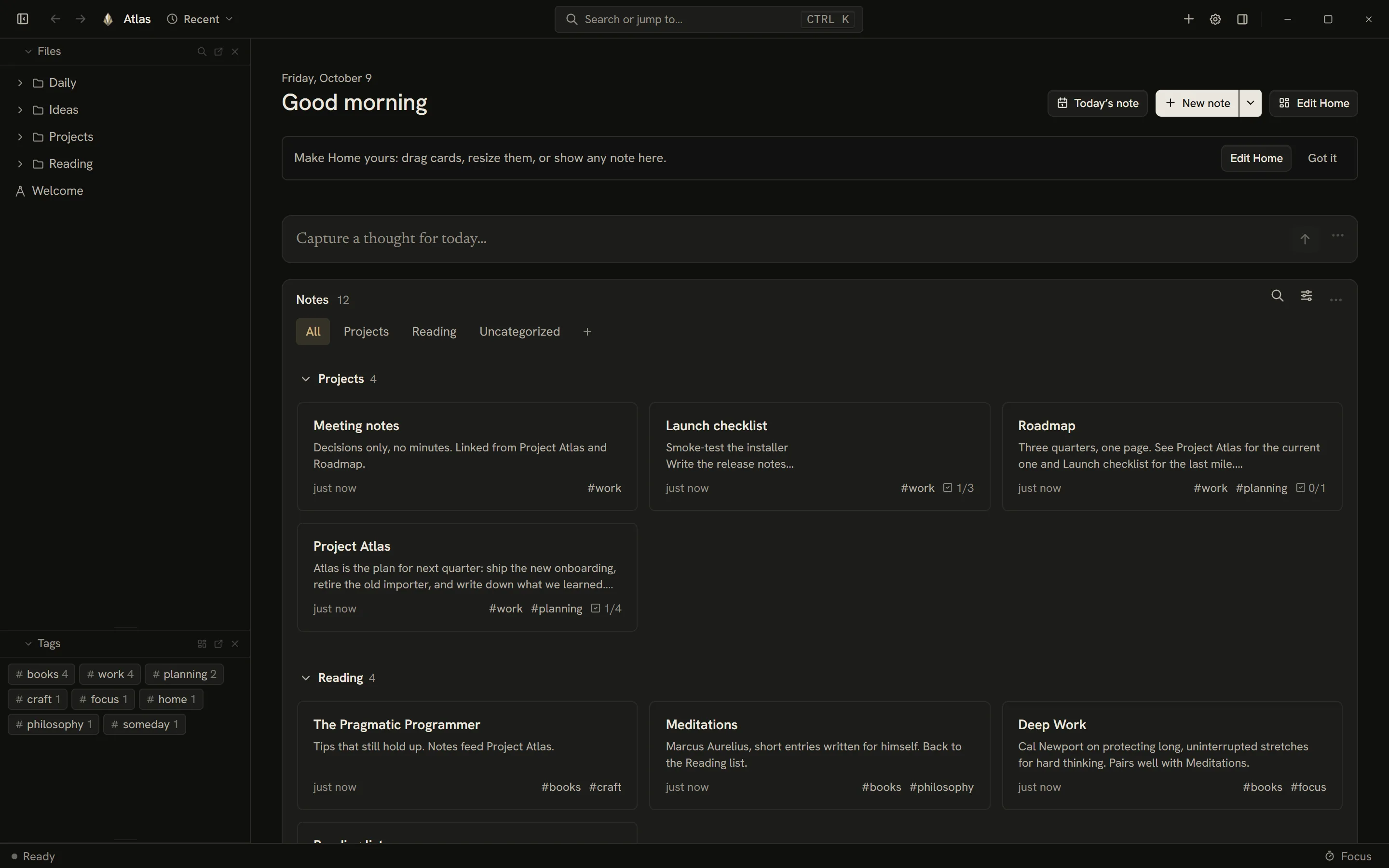
A short greeting over widgets you arrange.
Press Start writing and Niobium makes a “Niobium Notes” folder in Documents, showing the path with a “Change…” link. Or choose I already have notes.
Capture, Tasks, Calendar, Notes, Look back, Graph, Tags and single-note cards. Files, Outline, Links, Local graph and Note details live in the side panels. Each widget sits in one place only.
Add, remove and resize (Small, Medium, Wide), or drag a widget between Home and a panel. Every change has Undo; Reset asks first. Right-click Home for new note, Today’s note and templates.
One line, appended to today’s note. Start it with [ ] and it becomes a task.
Overdue, Today, This week and No date. Ticking a task rewrites that line in its note.
“On this day” notes from earlier years, and “Worth another look”, with a shuffle button.
Cards, List or Gallery. Sort by edited date, title or word count; group by category; show only notes with a cover; search by title, folder or #tag.
Plain checkboxes, gathered from every note, with no database.

- [ ] or * [ ], a due date as @2026-12-31, due:2026-12-31 or 📅 2026-12-31, and #tags. Dates read “Due today”, “Due Fri”, “Due 3 days ago”.
Pending, All and Completed, filtered by tag or text, grouped by note or flat. Ticking a task rewrites only its line.
Ctrl Shift T
Opens or creates today’s YYYY-MM-DD note in a Daily folder you can change, using the Daily Reflection template.
Ctrl Shift D
On Home it jumps to Capture. Over a note it opens Capture, Tasks and Look back without leaving the page.
Ctrl Shift H
A global shortcut appends - HH:MM your text to today’s note while Niobium runs.
Ctrl Alt N
Open Niobium, Quick capture, New note, Today’s daily note, Quit. Closing to the tray is optional.
Wikilinks, backlinks and a map of how your notes connect.

[[Note]], [[Note#Heading]] and [[Note|alias]]. Typing [[ suggests notes and can link one you have not written yet. Relative Markdown links work too.
Hover a link to read the note’s opening lines or the linked section. The panel lists “Linked from” and “Links to”.
Finds whole-word mentions of the open note’s title. One click turns the first into a link, with Undo.
Rename or move a note or folder and only the links that would break are rewritten, with Undo on the toast.
All notes, or the neighbourhood of the open one, one to three links deep. Colour by folder or tag, find a note, zoom and fit. “Most connected” ranks the hubs.
Ctrl Shift G
Every action and every note, from one box.

31 commands plus themes. Start with > for commands only or # for tags. Empty, it shows your five latest notes.
Ctrl K
Jump to a note by part of its title or path. A recent-notes menu sits in the title bar.
Ctrl P
"exact phrase", -exclude, tag:work (nested tags too) and in:Projects. Title matches rank first, then headings, then body.
Ctrl F
Categories, covers, icons and 34 templates.
A category: line in frontmatter. Drag a note onto a category to file it, drag headings to reorder, collapse the ones you are not using.
Give a note a cover and an icon. The picker has 43 sigils, 38 emoji, 16 expressions and 24 numerals.
Five groups, with {{date}}, {{time}} and {{title}} placeholders. Create, edit or reset them.
Pin notes, drag to move, select several to delete, duplicate, or reveal a note in the file manager.
A year of writing, and tools to keep going.

Notes and words, links, tags, open tasks, writing streak, this week; a 52-week heatmap; most-used tags, most-connected and longest notes.
Set 0–3,000 words. A ring in the status bar fills as you write. Deleting never subtracts; one save counts at most 1,500.
Sessions of 5–90 minutes, breaks of 1–30. “Open a random note” is in the palette.
Four checks that keep a large folder tidy.

Links that point at notes you have not written, with a “Create note” button beside each.
Notes in different folders that share a title.
Notes with no incoming links, so you can connect them.
Blank notes, which you can send to Recently deleted in one click.
Three ways back from a mistake.
Version history · Project Atlas
Recently deleted
A snapshot about every two minutes while you write; all kept for a day, then one a day for 30 days, up to 60 per note. Diff and restore. Stored outside your notes folder.
Deleted notes wait 30 days. Restore them, delete permanently, or empty the list.
A ZIP on demand, or automatic to a folder you choose: never, daily, weekly or monthly, made at startup.
Niobium Cloud E2EE, Google Drive, Dropbox, or WebDAV.
If two computers change one note, you get both
Project Atlas.md
Project Atlas (conflict from DESKTOP-2, 2026-10-09).md
Niobium Cloud with end-to-end encryption, Google Drive, Dropbox, WebDAV, or a local folder. Sync now, or on schedule.
If two computers change a note you get a second file, and a message naming both. Renames travel and links are repaired.
Ten themes, six metals, 53 fonts.

Onyx, Titanium, Verde, Niobium Velvet and Walnut are dark; Vellum, Cashmere, Niobium Blush, Whale White and Travertine are light. Follow your system, or lock Light or Dark.
Use the theme’s accent, one of six metals — Brass, Vermilion, Oxblood, Cognac, Verdigris, Ink — or any colour. Emoji can be monochrome or full colour.
53 families ship inside the app, in Sans-serif, Serif, Monospace, Handwriting and Display groups. Notes and interface have separate pickers; the defaults are Newsreader and Hanken Grotesk.
Editor size from 13 to 22 px, block spacing, and an autosave delay from 200 to 2,000 ms.
Tabler outline icons and a sigil set. Contrast is checked against WCAG AA by script, and reduced motion is respected.
The same notes on a phone. Available via direct APK download.
Home, Notes, Today and Search tabs, a new-note button, bottom sheets instead of dialogs, long-press menus, a back button that unwinds in order, and 44 px touch targets.
Simple: bold, italic, checklist, bullets, heading, undo. Power adds redo, quote, code, link to a note, indent and outdent — and the outline, Markdown source, graph and insights.
Appearance, Writing, Sync, Vault and backup, About. Text sizes Small, Medium, Large and Larger.


Files in a folder you choose. End-to-end encrypted sync, zero trackers.
Niobium Notes/
├─ Daily/2026-10-09.md
├─ Projects/Project Atlas.md
├─ attachments/diagram.png
├─ .lifenotes/    vault id, sync bookkeeping
└─ .trash/        Recently deleted, 30 days
Only the update check, and sync to the cloud or server you configured. Read how your data is protected.
Where each choice lives.
Open on Home, Today’s note, a blank note, a chosen note, or your last session; the + button; close to tray; the capture shortcut; writing goal, focus and break; backups. Vault: back up, move, close, or delete behind a confirmation.
Lists every widget and where it lives, and resets the layout.
Open settings as a tab, a floating window or in the split pane.
Niobium is designed for complete keyboard operation. All 23 application shortcuts are remappable in Settings.

| Key | Action |
|---|---|
| Ctrl N | New note |
| Ctrl Shift N | New folder |
| Ctrl Shift D | Daily note |
| Ctrl F | Find / search in note |
| Ctrl H | Find and replace |
| Ctrl P | Quick switcher |
| Ctrl K | Command palette |
| Ctrl , | Settings |
| Ctrl S | Save now |
| Ctrl W | Close note |
| Ctrl \ | Toggle sidebar |
| Ctrl Shift F | Zen mode |
| Ctrl Shift T | Task Hub |
| Ctrl Shift O | Document outline |
| Ctrl Alt S | Split view |
| Ctrl Alt M | Raw Markdown view |
| Ctrl Shift H | Today view |
| Ctrl Alt N | Global quick capture |
| Ctrl Tab | Cycle open tabs |
| Ctrl Shift G | Knowledge graph |
| Alt ← | Navigate back |
| Alt → | Navigate forward |
| Ctrl / or F1 | Open keyboard shortcuts cheatsheet |
| Key | Action |
|---|---|
| Ctrl B | Bold |
| Ctrl I | Italic |
| Ctrl Shift S | Strikethrough |
| Ctrl E | Inline code |
| Ctrl Alt 1–6 | Headings 1 to 6 |
| Ctrl Alt 0 | Normal paragraph text |
| Ctrl Shift 8 | Bullet list |
| Ctrl Shift 7 | Numbered list |
| Ctrl Shift 9 | Task list |
| Ctrl Shift B | Blockquote |
| Ctrl Alt C | Code block |
| Shift Enter | Soft line break |
| Tab / Shift Tab | Indent / outdent list item |
| Ctrl Z / Ctrl Y | Undo / redo |
| Alt F10 | Focus table toolbar |
| Alt + Click | Select wikilink without opening note |
What Niobium does not do today.
Tauri 2 (Rust), React 19 and TipTap.